Where an iCUE Murals download comes from
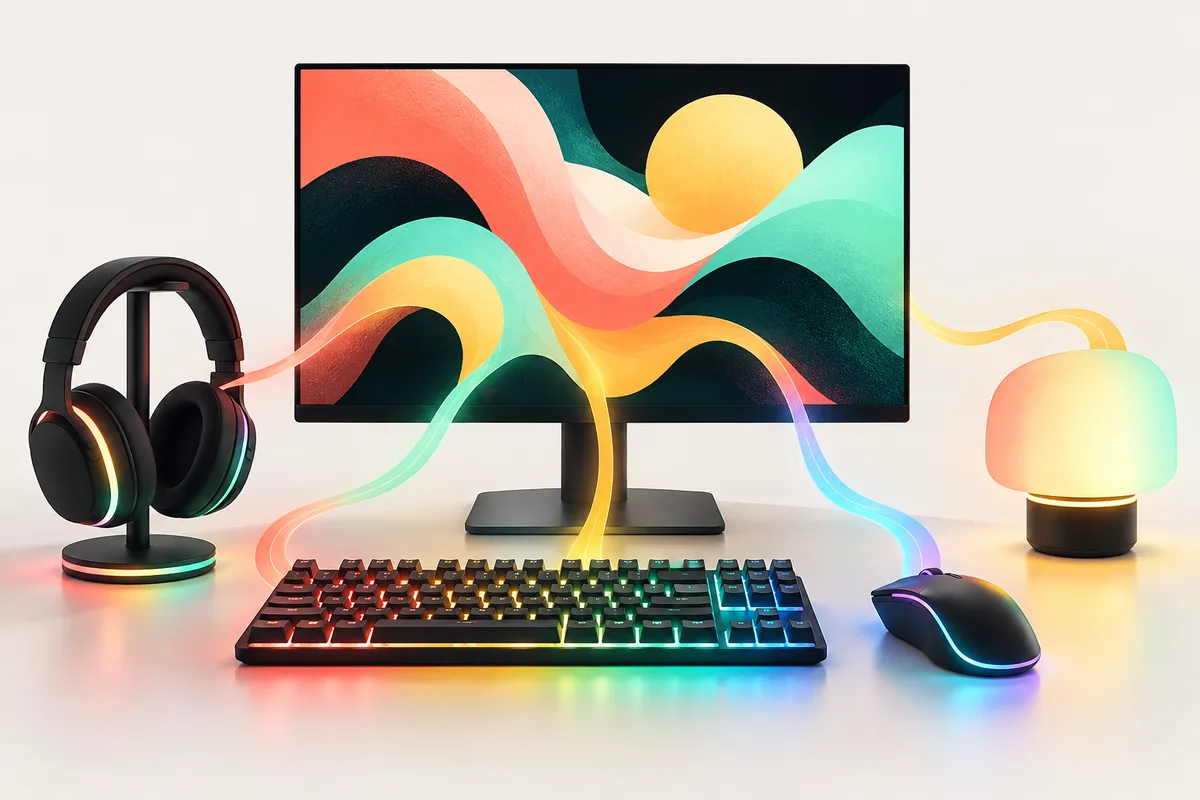
If you searched for an iCUE Murals download, begin with Corsair's iCUE Murals page. Corsair presents Murals as a capability within iCUE, so the practical download is the iCUE software reached through Corsair's own source. There is no separate Murals installer identified here, and this guide does not host, repackage, or mirror software.
Corsair's product material describes using visual content to drive lighting. Its February 2023 launch release named images, GIFs, videos, and on-screen visuals as possible sources. That release is useful background, not proof that every source or control is unchanged today. Before installing, use the current Corsair page to confirm the available iCUE route and review any current system or device requirements.
Avoid third-party archives claiming to be a standalone Murals installer without a Corsair source. Follow Corsair's download route, check the publisher, and do not trust guessed CDN addresses or copied version details.
Murals, profiles, scenes, and effects are different
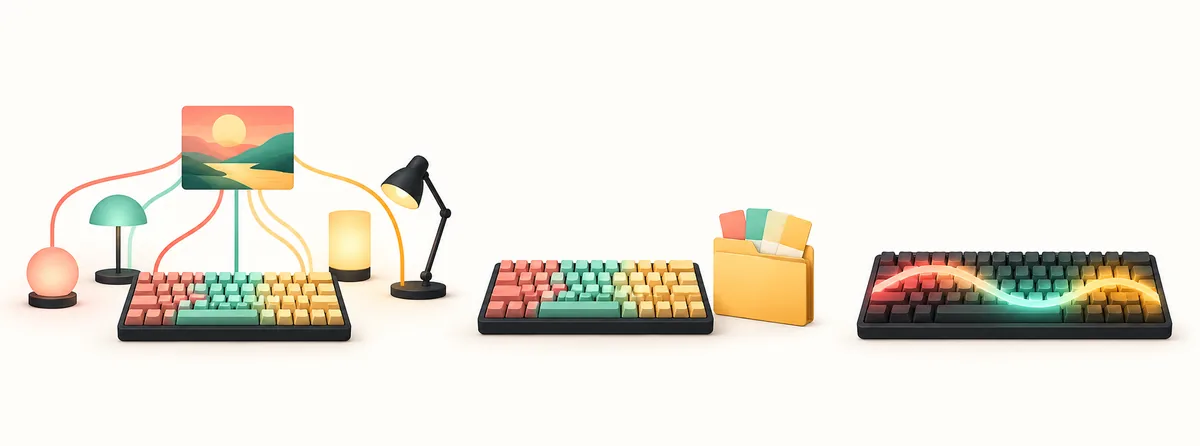
These terms overlap because they can all affect RGB lighting, but they describe different parts of a setup. A profile is a saved collection of device settings. An effect is a lighting behavior applied to supported zones. A scene is a coordinated look or state. Murals is the iCUE feature that can use visual content as a lighting source and map that source across compatible devices.
For a saved layout, start with a profile; for a repeating wave or static color, choose an effect. Use Murals when a visual source should influence supported lighting. Available controls still depend on the installed software and device.
| Item | What it describes | Useful when |
|---|---|---|
| Murals | Visual source translated into lighting | You want screen or media colors reflected on supported devices |
| Profile | Saved device settings and assignments | You want to store, organize, or switch between configurations |
| Lighting effect | A defined animation or color behavior | You want a repeatable effect such as a wave or static color |
| Scene | A coordinated lighting look or state | You want to apply a prepared visual state across compatible hardware |
Check your system and devices before setup
Before you install software or change an existing lighting setup, record the exact model name and connection path for each device you want to control. A keyboard connected by USB can expose different controls from a wireless device in a limited mode. A product family name alone is not enough to establish that each revision, controller, or firmware combination supports Murals.
Compare the exact model with Corsair's current compatibility information and confirm that iCUE detects it. If another RGB utility is active, note which program controls each device; competing applications can cause flicker or unexpected colors.
- Write down the full product model and whether it is wired, wireless, or connected through a controller.
- Check Corsair's current compatibility material for that specific product and operating system.
- Confirm that iCUE detects the device before testing a visual source or mapping.
- Close or pause competing lighting applications only after recording their settings and control role.
Compatibility is model- and connection-specific. Treat a missing Murals control as a support question to verify, not as proof that the hardware is defective.
Set up a visual source and map the lighting
After installing iCUE from Corsair's source, open the software and look for the Murals controls available in that version. Interface names can change, so use Corsair's current instructions when a menu differs. Start with one simple visual source and a small set of detected devices. This makes it easier to tell whether a source, a mapping, or a particular hardware zone is responsible for an unexpected result.
For a screen-based source, choose a display or region with the colors you want to reflect. Test one source at a time and keep the original profile available until the mapping behaves as expected.
- 1
Confirm the software and device
Open iCUE from Corsair's verified route and make sure the target device appears before changing its lighting.
- 2
Choose one source
Select a supported image, media, or screen source shown by the installed Murals controls.
- 3
Select the target devices
Begin with a single keyboard or lighting group whose zones are visible and easy to compare.
- 4
Review the mapping
Check whether the selected source area and device zones correspond to the result you expect.
- 5
Save and retest
Keep a known working profile, then test the mural again after restarting iCUE or changing the source.
Tune device zones without expecting a perfect mirror
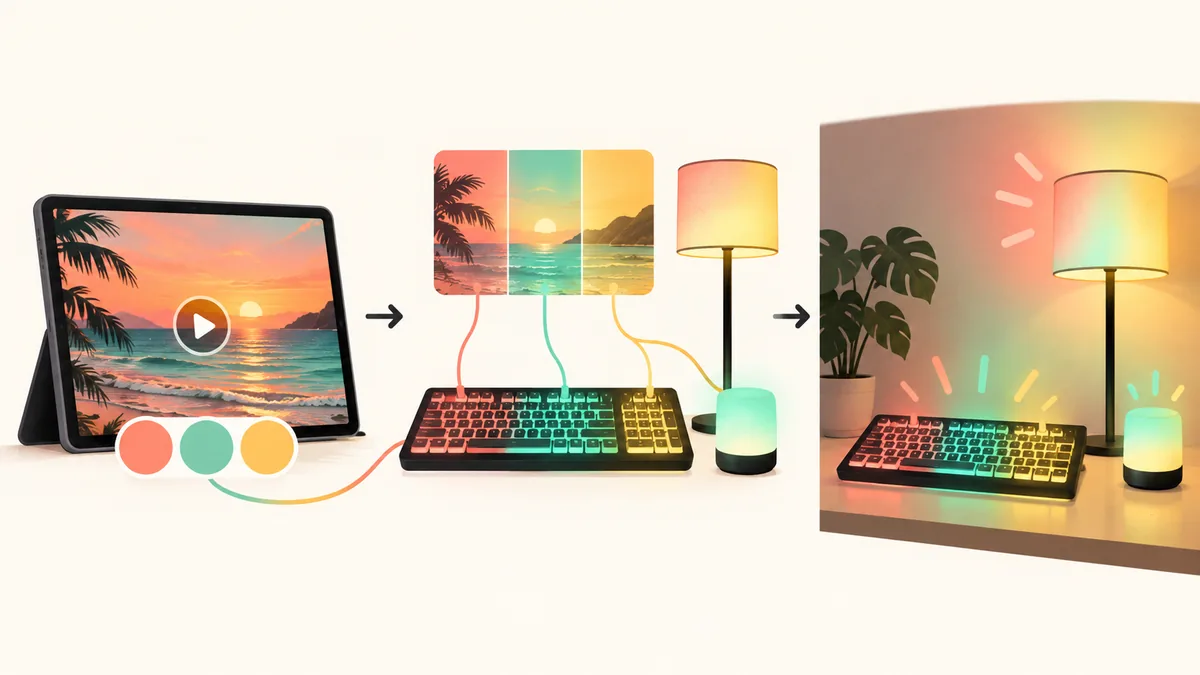
A Murals mapping is an interpretation of a visual source, not necessarily a pixel-for-pixel display. Each device has its own LED count, zone layout, orientation, and brightness range. A strip with a few zones cannot reproduce the same detail as a monitor, and a keyboard's per-key LEDs may create a different rhythm from a fan ring. Use broad color changes and motion as the first check rather than judging the result by tiny visual details.
If colors shift, inspect device orientation and the selected source area. Adjust one device at a time. If a device is absent, check detection and connection support before reinstalling iCUE.
Lower brightness in a dark room and slow movement if it is distracting. Check the source first, then tune the device layout. Save a working baseline before experimenting.
Use connected smart lighting with clear boundaries
Corsair's Murals material describes integrations with Philips Hue and Nanoleaf and also mentions Govee control. Integration availability can change with software, account, region, bridge, and product support. Before purchasing or resetting a smart-light device for this purpose, verify the current Corsair instructions and the requirements published by the lighting manufacturer. This guide does not promise that a particular model or account setup will work.
Set up an integration only after local Corsair devices work. Confirm the bridge or account, grant requested permissions deliberately, and test one light group. If a third-party light does not respond, check its own application and network before changing iCUE. Never share credentials or pairing codes.
Screen-reactive lighting can reflect private content. Choose a source region deliberately and pause capture before opening sensitive documents or calls.
Troubleshoot a Murals setup in a controlled order
When an iCUE Murals download or setup fails, identify the stage: Corsair source, installation, device detection, source selection, or lighting output. Change one variable at a time and record the model, connection, software version, and symptom.
If the feature is missing, verify that iCUE came from Corsair, then check the current software route, exact-device support, and connection mode. If a device is absent, reconnect it through its supported port or controller and confirm detection before testing Murals again.
If colors are wrong, test another source and reset only the mapping you changed. After an update, restart iCUE and the affected device before considering repair. Back up settings first; use the download-failed or uninstall guide if installation itself is the problem.
- 1
Separate the failing stage
Note whether the problem is download, installation, detection, source selection, or lighting output.
- 2
Verify detection and support
Check the exact model, connection, and device listing in iCUE before changing a mural.
- 3
Test one source and one device
Use a simple changing visual and a single device to isolate source behavior from mapping.
Keep a reliable lighting baseline
Save a simple profile and note the mural's devices and source. Compare changes against this baseline before rebuilding. Murals is part of iCUE; use a regular effect or profile when a visual source is not appropriate.
There is no need to download a separate Murals pack to try the feature described by Corsair. Start from the official iCUE route, test only controls that appear for your hardware, and use a normal effect or profile when a visual source is not appropriate. For a broader software overview, device checks, or profile workflow, use the related guides below.
iCUE Murals download FAQ
Is there a separate iCUE Murals download?
Corsair presents Murals as a feature inside iCUE. Use Corsair's product page to reach its current iCUE download route; this guide does not provide a separate Murals installer.
Where should I download iCUE Murals?
Start at Corsair's iCUE Murals product page and follow its current software download links. Verify the publisher and package before running an installer.
Can Murals use a video or screen as a source?
Corsair's product material describes visual sources, and its 2023 launch release named images, GIFs, videos, and on-screen visuals. Available choices can vary by the current software version, so check the controls and instructions shown by Corsair.
Does every Corsair device support Murals?
No universal device guarantee is made here. Support depends on the exact model, connection, controller, firmware, and software. Check Corsair's current compatibility information and confirm the device appears in iCUE.
How is Murals different from a profile?
A profile stores device settings, while Murals can use a visual source to drive lighting on supported hardware. A profile may still be useful for saving a known-good configuration.
Why is the Murals control missing in iCUE?
Check that iCUE came from Corsair, then verify the software route, exact device support, and connection mode. If the device is not detected, resolve that first using the compatibility guide.